Maximo Application Suite

MAS – Techno‑Functional

Search This Blog

Friday, January 24, 2020

MAXIMO:MBO transactions and significance of save() method , getting MboSet from relationship vs MXServer


****Maximo Transactions - significance of Save , MXServer getMboSet ****

Today I am going to explain about when you are adding or updating records in Maximo via code (e.g. Java, Autoscript etc.), then you need to understand how maximo handles transactions.

We will need to consider , when you are adding something in the current transaction (so when the user clicks 'save', you record will be saved) OR when you have created a new transaction (and you have to save it via code).

Lets talk about below scenario I have recently worked to meet business requirement:
It was required by business , When a user tries to save an asset with a location, the system must go out and look at the location for other assets. If there are no other assets attached to the location, then add a dummy asset and attach it to the asset also. (Yes there was a functional reason for this.)


This is a really good example to show both ways of working with transactions in Maximo.


For the new asset, we can either attach it to the current save so when the save process finishes, it will also save our new asset. This has a benefit of, should something go wrong on the save, then our changes are also not saved. Here is the code snippet (Autoscript):
###########################################################################################################################################################################
#
# Version       Date         Author                 Request #                Remarks
#   1.0       DD|MM|YYYY   Prashant Bavane    Asset and Location linking    Associate additional Dummy asset to location when no asset exists , during creation of asset
#
###########################################################################################################################################################################
from psdi.server import MXServer
from psdi.mbo import Mbo
from psdi.mbo import MboRemote
from psdi.mbo import MboSet
from psdi.mbo import MboSetRemote
## get Locatoins MBO Set. this is the key our transaction  
locationMboSet = mbo.getMboSet("LOCATION")  
##get current location record  
curLocation = locationMboSet.getMbo(0)
##get all assets for the current location  
assetMboSet = curLocation.getMboSet("ASSET")
##don't look at the current record (in case the users is updating the record).  
assetMboSet.setWhere("assetnum != '" + mbo.getString("ASSETNUM") + "'")
assetMboSet.reset();  
##check for no records  
if (assetMboSet.count() == 0):
 ## add dummy asset  
 dummyAsset = assetMboSet.add()
 dummyAsset.setValue("assetnum", "DUMMY"+ mbo.getString("assetuid")[:7]) 
 dummyAsset.setValue("description","DUMMY place holder Asset do not use")


In this example how we got the Locations MBO Set is very important. You will notice that I used the current mbo (the getMboSet() method). By doing this, it keeps that record set as part of the current transaction in Maximo. So later in the code, when I add the new Asset, it is also part of the same transaction and Maximo will save or roll it back with the main record that is being added/updated. Doing it this way you would never want to perform a save via code as it would cause an error to the user when the save tried to happen within Maximo (the dreaded "record has been updated by another user").


However, had I used this line of code to get the locations MBO Set:
...

locationMboSet = MXServer.getMXServer().getMboSet("LOCATIONS",...);

...


Maximo would have created a new transaction for the locations MBO set. That means that for this code to work, I would have to add a locationMboSet.save().  Without the save(), I would lose my new asset record. The other thing is that since I have done my save, the new asset would exist before the user has officially saved theirs. (This transaction completes before the Maximo transaction does.)


Both methods have their place and I have used both. It is important to understand how to use each and what that means to your code.


Cheers!!!
Friday, January 17, 2020

MAXIMO: Make memo field required for specific status changes


****Maximo Make MEMO filed required during status change****

Below I am outlining simple maximo solution when you have requirement to make the "memo" field required when status being changed to a specific value.

Actually this requirement may not be done using conditional UI.

We need to use automation script or java code in order to achieve this requirement.


Below is automation script approach to provide solution for this requirement.

Requirement : Make the memo field required when work order status is being changed to "Approved" in changed status dialog.

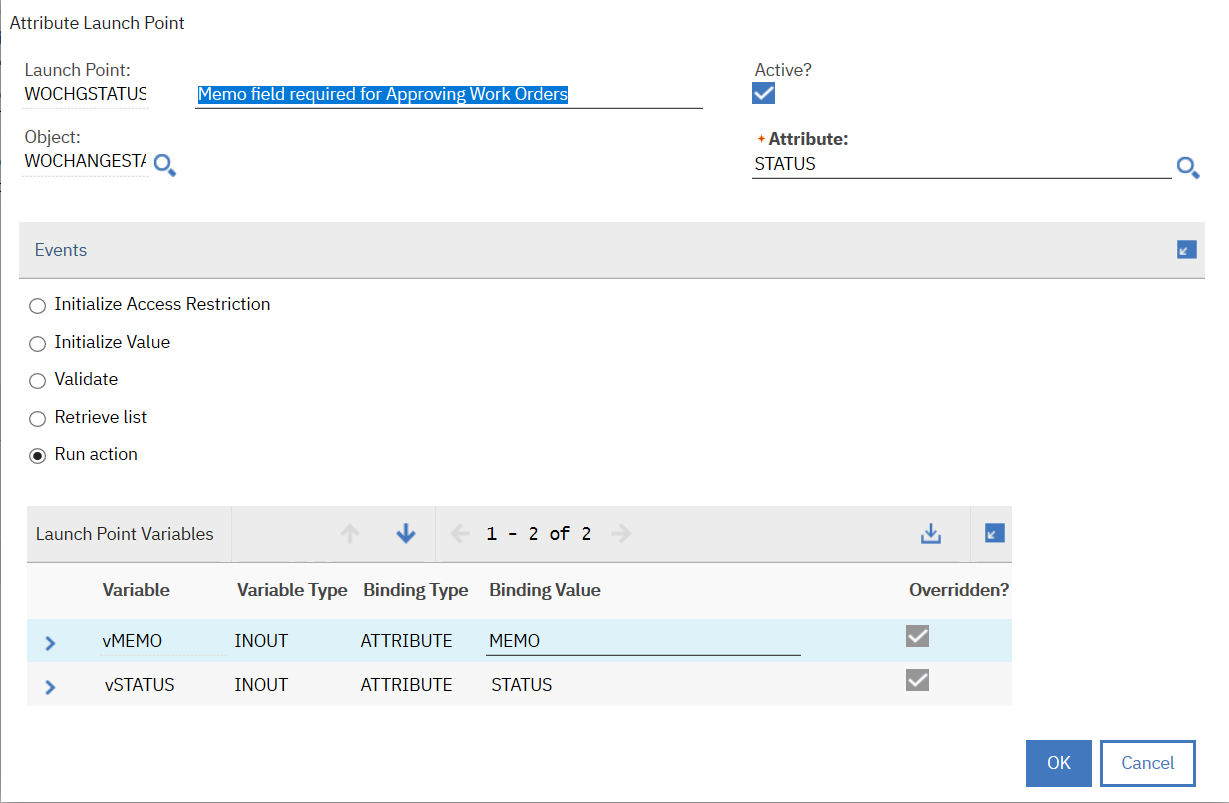
GoTo-> Automation Scripts ->Create script with Attribute Launch Point.

LaunchPoint - WOCHGSTATUS
Description : Memo field required for Approving Work Orders
Object : WOCHANGESTATUS
Attribute : STATUS
Events : Run Action

Create Below Launch point variables :
vSTATUS   INOUT Override , Binding : STATUS
vMEMO     INOUT  Override , Binding : MEMO


Now use below script code (Python)

#########################################################################################################################################################################

#

# Version       Date         Author                     Request #                               Remarks

#   1.0       1/10/2019   Prashant Bavane    Make MEMO field required                           WO status being changed to APPR

#

#########################################################################################################################################################################

from psdi.mbo import MboConstants
from psdi.server import MXServer

if (MXServer.getMXServer().getMaximoDD().getTranslator().toInternalString("WOSTATUS",vSTATUS,mbo)=='APPR'):
 vMEMO_required=True
else:
 vMEMO_required=False


Create/Save the script.

Now we will test this solution.

GoTo - Work Order Tracking application , open WO record having WAPPR status.
Click "Change Status" button/select action.
Then , you can get "Change Status Dialog.


Select "Approved" status from dropdown list for New Status field


Maximo Status Chage


Now click OK button without entering any value for Memo field.

You will get error as below :


Cheers!!!

Friday, January 10, 2020

MAXIMO: Date validation for Classification Attributes

 ****Date validation for Classification Attributes****


Maximo’s Classifications is a powerful tool that allows you to add data field (attributes) for different types of records. It currently supports numbers and string. However there is no out of the box way for it to validate that the user entered a valid date (you end up using string field). This can be a problem if you want to run date range reports against the field or if the field is interfaced with another system. However, there is a way and this is how you can make the user enter a valid date in a classification attribute.

This approach does make a few assumptions:
An attribute that is to be used for a date will always be used for a date in all classification where it is used. For example, if you create an attribute called INST_DT, then it is assumed it will be a date for any classification that used the INST_DT attribute.
This approach only supports one date format (currently MM/DD/YYYY, but this can be changed to a different format). A date not entered in that format will generate an error, even if it is a valid date.
Adding an attribute does require the modification of the autoscript (see below).

So how to use this.
First create your attribute that is to be a date field
Next, create a new autoscript
The launch point will be the “spec” table where the attribute is to be used. For example if you are using a classification for assets, then the table will ASSETSPEC. Create a Attribute launch point on the “spec table”.ALNVALUE. (e.g. ASSETSPEC.ALNVALUE). Make it for Validation of the field. The language is Jython.
Below is autoscript code


# Script: ALNVALUEDATECHECK
# Date: 12/20/2019
# Author: Prashant Bavane
#
# Description: this script will validate that a user has entered a valid date
# for the ALNVALUE field on the ...SPEC Field (EG. ASSETSPEC, LOCATIONSPEC, Etc.)
#
# to use this script, first edit this script and for each attribute, add an entry to the table array.
# for example, if you wanted to do the LASTDOT attribute and this
# is the first one you are setting up,
# then set fieldCount=1 and then create table entry records where table[0] = 'LASTDOT'
# You will need to do this for each attribute you want to check. So say you wanted to add another field
# (Aattribute TARGETDATE)
# then increment fieldCount by 1 (now 2) and create table entry records where table[1] is 'TARGETDATE'
# Repeat for each time you want to add a field to be validated as a date.
#
# Once you have added the attribute to this script, you will then need to create a launchpoint
# on the table.alnvalue attribute/Validate action. (E.G. Assetspec.ALNVALUE field). You will only
# need to create one lauch point per table (ASSETSPEC, LOCATIONSPEC, etc.) This code is Jython script.
#
# Once an attribute has been added to the script (and a launch point created for the correct 'spec' table),
# then every time that attribute is used on any classification on that table, this script will validate that it
# is a date.
#
from java.text import SimpleDateFormat
from java.util.regex import Matcher
from java.util.regex import Pattern
#
# this script currently only supports the date format: MM/DD/YYYY
# this system check that first the entry is in the correct format and then that it is a valid date.
# for some reason SimpleDateFormat is not restrictive so we have to do this so things like 11/30/99j do not pass (which SimpleDateFormat says is okay)
# To change to a different format, modify the following lines to fit your needs
regexPattern = "\\d{2}/\\d{2}/\\d{4}"
# this must insure that it is in the correct format, not a valid date (so 99/82/1000 would pass this check but 01/jj/302q would not)
smipleDateFormatPattern = "MM/dd/yyyy" # this must be java's simple date format for the correct date.
#
#
fieldCount = 1 # number for table/classification/attribute to check
table= [ 0 for i in range(fieldCount) ] # array that holds AssetAttrID value.
#
# repeat the following line per attribute to check
# Attribute: INST_DT
table[0] = 'INST_DT' # attribute
#
for i in range(0,fieldCount):
if mbo.getString('ASSETATTRID') == table[i]: # check to see if we are on the correct attribute
valueToCheck = mbo.getString("ALNVALUE")
if len(valueToCheck) > 0: # we let blank fields pass
# first step is to make sure the field is in the correct format. We use regex for this
regPattern = Pattern.compile(regexPattern)
matcher = regPattern.matcher(valueToCheck)
if matcher.matches():
# we use the Java SimpleDateformat and try to parse it. If it fails then we assume it is in an invalid date.
try:
format = SimpleDateFormat(smipleDateFormatPattern)
format.setLenient(False)
date = format.parse(valueToCheck)
except:
errorgroup = "configure"
errorkey = "BlankMsg"
params = ["Invalid date format. The value must be in the format: " + smipleDateFormatPattern]
else:
errorgroup = "configure"
errorkey = "BlankMsg"
params = ["Invalid date format. The value must be in the format: " + smipleDateFormatPattern]


Before saving, edit the source code and look for the line:table[0] = 'INST_DT' # attribute
Replace INST_DT with the name of your attribute.
Save
Now go test it.
To add another attribute, edit the code
Look for the line: fieldCount = 1 and increment the value by 1 (or the number of attributes you are adding. This value should always
Next, copy the line: table[0] = '….' And increment the number by one, and change the string to the name of your attribute. (E.g. table[1] = 'TARGDATE')
Save
To use this on a new spec table (like locationspec, ticketspec, workorderspec, etc), create a new launch point on the “spec table”.alnvalue like you did in the first one. You only need to have one launch point for table (not one per attribute).

Tried to explain all this in the autoscript so if you implement and down the road you want to add a new attribute, you can look at the autoscript and not have to search your email on how to do it.

Friday, January 3, 2020

MAXIMO: Best way to loop through MboSet

This is the first of a new series of technical tips. Today we are talking about how, in code (Java and Autoscript), the best way to process an MboSet. There are lots of ways to process them but some are better than other. (All code is shown in Java but can easily converted to Jython.)

Let’s look at this sample code. This is pretty standard/common way to process a MboSet:


Now this code will happily process the Asset table but it turns out this code is the slowest way to do it. The reason is the use of mboSet.count(). When you execute this, Maximo basically runs the SQL statement: SELECT COUNT(*) FROM ASSET. This happens every time the line of code is executed. So if there are 100,000 records in the ASSET table, then this code runs SELECT COUNT(*) FROM ASSET 100,000 times. If you have 500,000 records in ASSET then, it would have to be executed 500,000 times. You can see where this is not the fastest approach. A better approach would be to use a variable and execute the mboSet.count() just once. That could would look like this:


This is much better as no matter how many records there are in the ASSET table, we only execute the mboSet.count() once. However, it turns out that we don’t even need the mboSet.count() (and its SELECT COUNT(*) FROM ASSET). If your goal is it just process the records in the MboSet, then this is the best approach:


Here we have not only eliminated the MboSet.count(), but also the extra variables we used to process the MboSet.

Here is what the best code looks like in Jython:


Cheers and happy coding.

Wednesday, October 16, 2019

MAXIMO Bean Class : Reference Info

IBM Maximo :  Bean Class reference information

In this post I will provide some reference information about methods in Maximo bean classes and typical use.

Methods in Bean Class:

1. RESET method:
     This method is called when a new filter is applied for the dialog's MboSet. 
              @see psdi.webclient.system.beans.DataBean#reset()
              @Override
              public void reset() throws MXException
               {   
                 try
                   {   
                     //saveCurrentSelection();
                   }
                 catch (RemoteException e)
                   {
                     //handleRemoteException(e);
                   }
                 super.reset();
                }


2. CALL method:

     /* 
     * This method is called whenever an event is generated in the dialog (e.g. OK button is pressed). 
     */
    @Override
    public int callMethod(WebClientEvent event) throws MXException {
        //ToDo Custom logic here
        return super.callMethod(event);
    }

3. INITIALIZE method:
     This method is used to initialize values on dialog. 
              @Override
    protected void initialize() throws MXException, RemoteException
    {
        //ToDo custom logic here;
        super.initialize();
    }